Getting Started
Welcome to SwipeLab! This section will guide you through creating your account, verifying your email, and signing in for the first time.
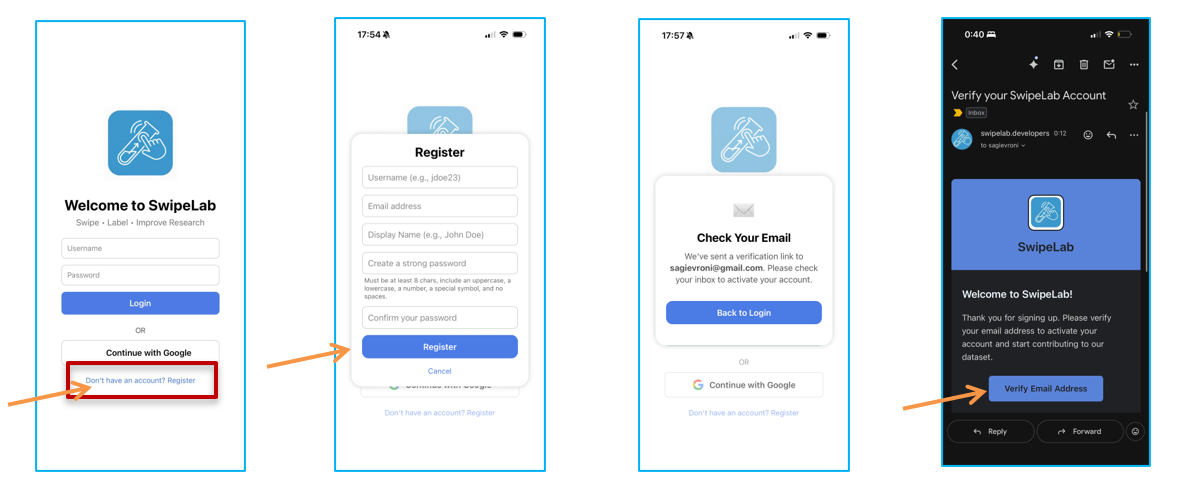
Registration
To start using SwipeLab, follow these steps:
- 1Fill in all required registration details (name, email address, and password).
- 2You will receive a verification email to the address you provided.
- 3Open the email and click the verification link inside it.
- 4Only after completing verification will you be able to sign in to SwipeLab.
Logging In
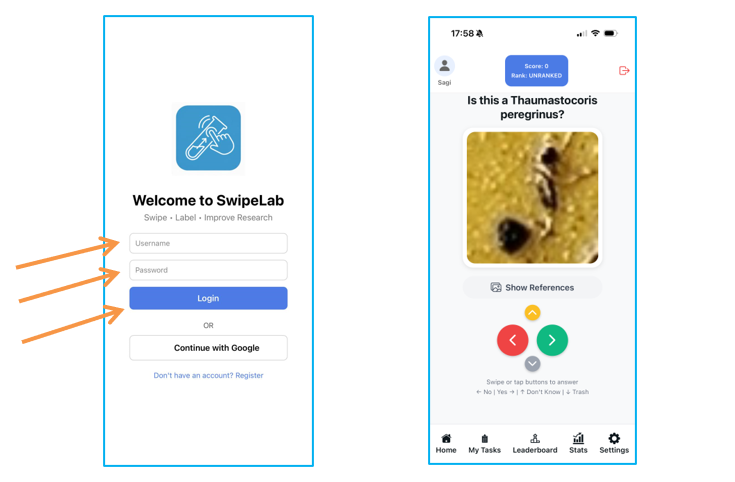
Enter your credentials and log into your account. Choose the sign-in method that matches how you registered:
Option A — SwipeLab Account
- 1Enter the email address and password you used during SwipeLab registration.
- 2Tap Sign In to access your account.
Option B — Continue with Google
- 1Tap the Continue with Google button on the login screen.
- 2Select your Google account and grant the requested permissions.
- 3You will be signed in automatically.
Option C — STARdbi Account
- 1Enter your STARdbi account credentials.
- 2Tap Sign In to access your account.
Navigation Overview
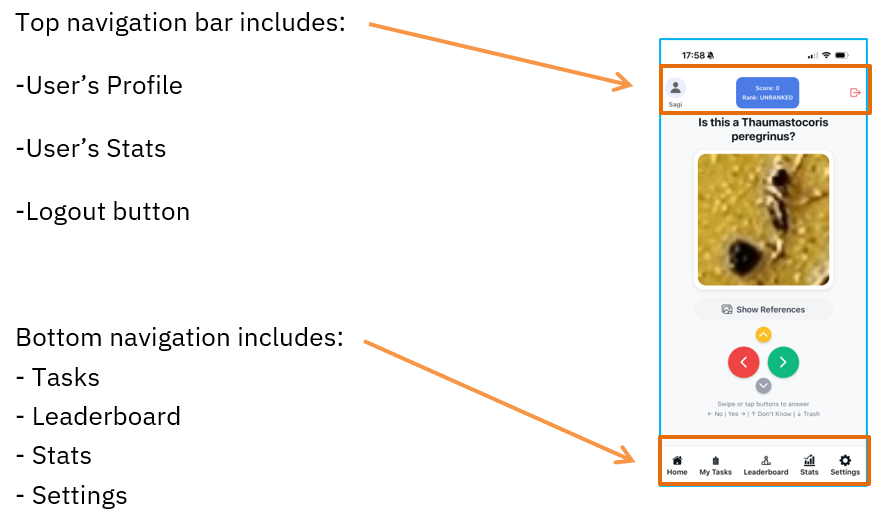
Once signed in, you will land on the main screen. Use the bottom navigation bar to move between the app's key areas.
Your Profile & Dashboard
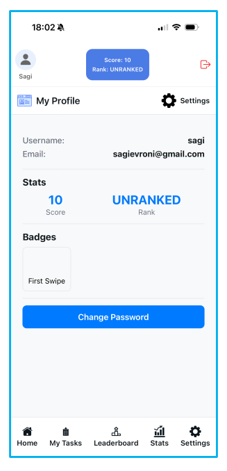
Your profile is your personal hub in SwipeLab. Tap the Profile icon in the bottom navigation bar to access it.
Your Profile
From the profile screen you can view and manage:
- Account details — your name, email, and registered account information.
- Score & Rank — your total points and current standing in the community.
- Badges — achievements and badges you've unlocked through your contributions.
- Change password — update your password at any time from here.
How to Classify Images
The core of SwipeLab is the classification interface. Here's how to find your task, label images, and use the tools available to you.
The Home Screen
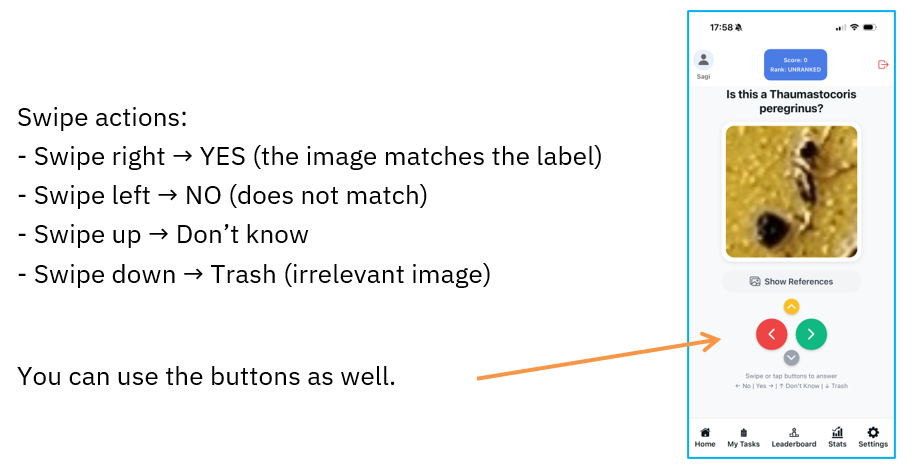
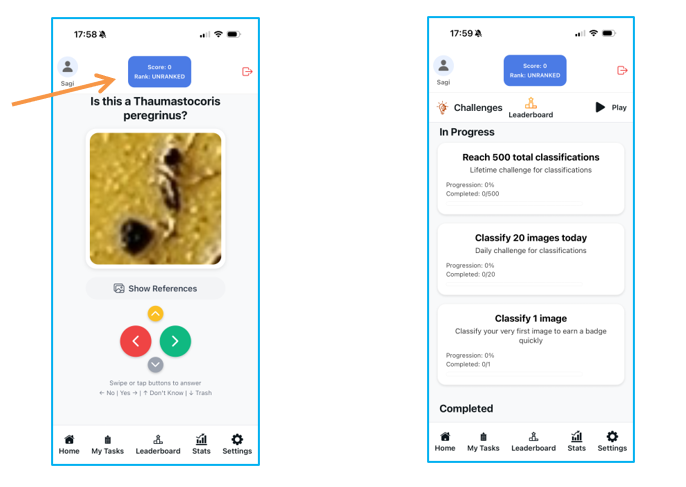
When you open SwipeLab, the Home screen displays an image waiting to be labeled. This image comes from your currently active task — or a default task if you haven't selected one yet. Swipe right to confirm a match with the species, or swipe left to reject it. You can also use the on-screen buttons.
Choosing a Task
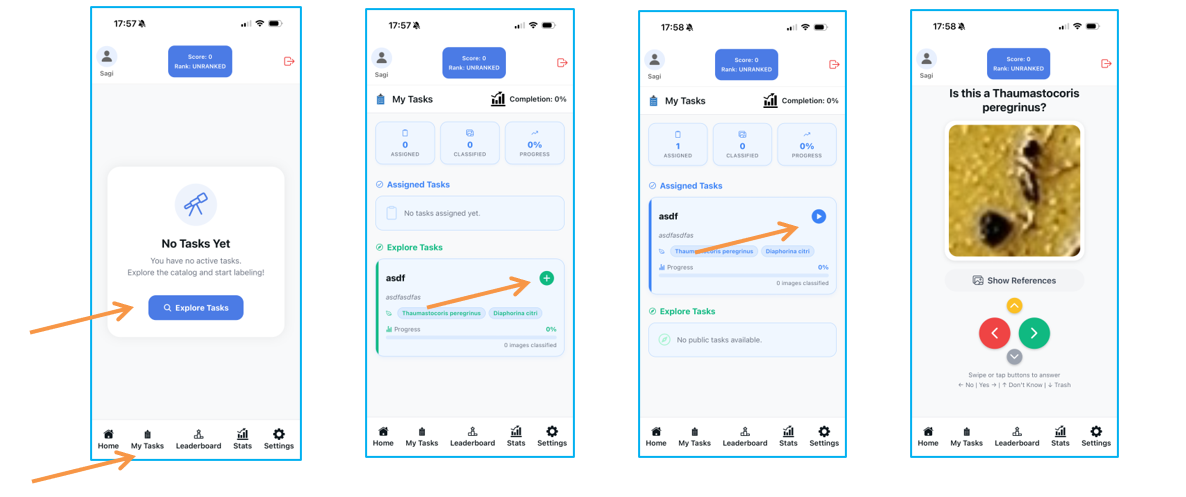
If it's your first time, you've just finished a task, or you want to switch to something different, tap the Tasks button in the bottom navigation bar. On the Tasks screen you'll find:
- Assigned tasks — tasks a researcher has assigned specifically to you.
- Public tasks — tasks anyone can pick up.
Tap + next to a task to add it to your assigned tasks, then tap the Play ▶ button to start labeling images from that task.
Using the Reference Button
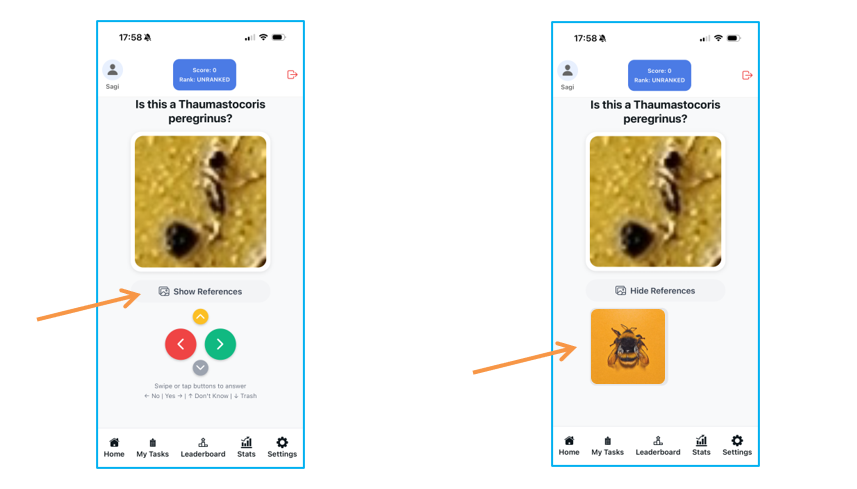
Not sure what the species looks like? Tap the Reference button below the image to view example photos of the species you're labeling. Use these as a guide when making your classification decision.
Points, Streaks & Badges
SwipeLab keeps you motivated with a live progress bar, streaks, and challenges — all visible at a glance.
Your Score Bar
At the top of the screen, a blue bar displays your current score, rank, and active streak — updated in real time as you classify images. Tap the bar to open the Challenges panel, where you can browse available challenges and track your progress toward completing them.
Leaderboards & Achievements
Track how you're doing, compete with the community, and build your personal species collection — all from the Leaderboards screen.
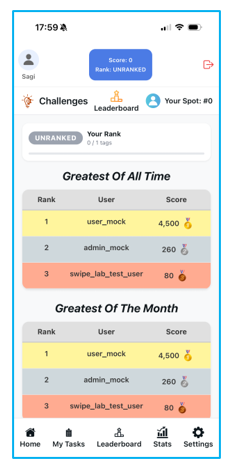
Leaderboard
See how you rank against other SwipeLab volunteers. The leaderboard shows:
- Your rank — where you stand among all users.
- Greatest of All Time — the highest scorers since SwipeLab launched.
- Greatest of the Month — the top performers this month.
Your Stats
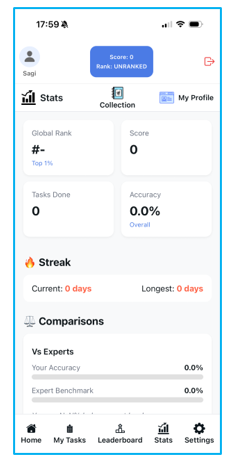
Get a detailed view of your personal performance. Your stats include:
- Global rank — your position among all users.
- Score — total points earned from classifications.
- Tasks completed — how many tasks you've finished.
- Accuracy — how closely your labels match expert classifications.
- Streaks — your current and all-time daily streak.
- Comparison — how you measure up against experts and the community average.
Collection Notebook
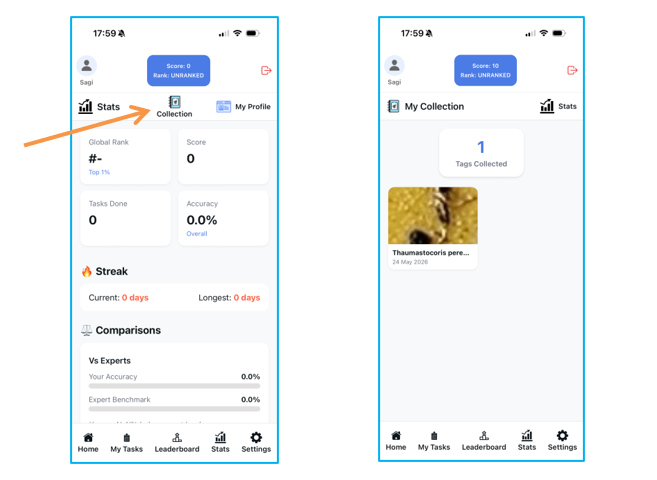
Every species you confirmed with a YES label is saved to your personal Collection Notebook. Browse it anytime to see all the species you've identified and watch your collection grow as you classify more images.
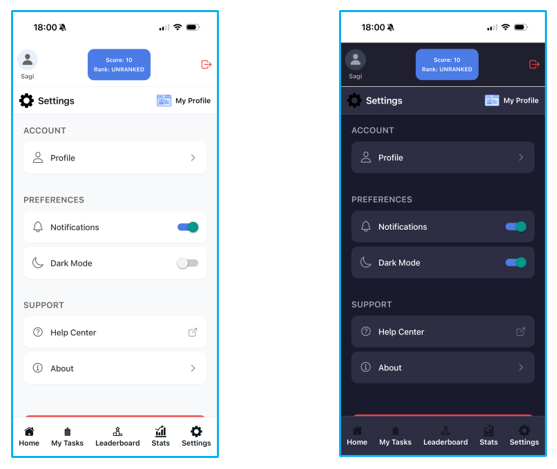
Settings & Preferences
Customize your SwipeLab experience from the Settings screen. Access it via the bottom navigation bar.
Settings Options
From here you can manage:
- Profile — view and edit your account details.
- Notifications — turn push notifications on or off.
- Dark mode — switch between light and dark theme.
- Help Center — access tutorials and guides to get the most out of SwipeLab.